
VNIT Reset Tool user guide — reset the Epson waste ink pad counter step by step
Updated 2026-09-28 · VNIT — 10 years repairing printers & laptops · Nationwide support
You have downloaded VNIT Reset Tool and your Epson is sitting there refusing to print. This walks you through the whole thing — unzip the file, plug in the printer, read the counter, clear it, restart the printer. Most people are done in five minutes. If you just want the short version, the four steps at the top are the entire process; everything after that is detail and what to do when something goes sideways.
The short version — four steps
- Unzip the file to a folder, then run VNIT_Reset.exe. Do not run it from inside the zip.
- Connect the printer with a USB cable and switch it on. The app detects it and shows the model at the top.
- Click Read counter to see how full the waste ink pad counter is. Then click Reset all (if you have a key) or 🎁 Free trial (if you do not).
- Switch the printer off and on again — mandatory. Skip this and the printer keeps showing the same error.
After the reset, check the waste ink pad: a reset only sets the counter back to zero — the waste ink itself is still inside the printer. If the pad is not saturated yet, there is nothing to do. Once it is soaked, it can usually be washed, dried completely and refitted, or replaced with a new one. Left full and untouched, the ink can overflow onto the mainboard. See when a reset is enough and when the pad needs washing or replacing.
Download and open the app
Download the build that matches your Windows from the VNIT Reset Tool page. It runs on Windows 7 to Windows 11: a 64-bit build for almost every current machine, plus a separate build for Windows 7 / 32-bit Windows. There is also a Mac version (macOS 11 or later, Intel or Apple silicon). All of them are on vnitreset.com/download.
You must extract the zip to a real folder before running it. Double-clicking a zip only lets Windows preview the contents — running the app from there means it cannot store its licence and you get confusing errors. Right-click the zip → Extract All… → choose a location → Extract.
There is no installer and no administrator rights are needed. Copy the whole folder to another computer and it still runs.
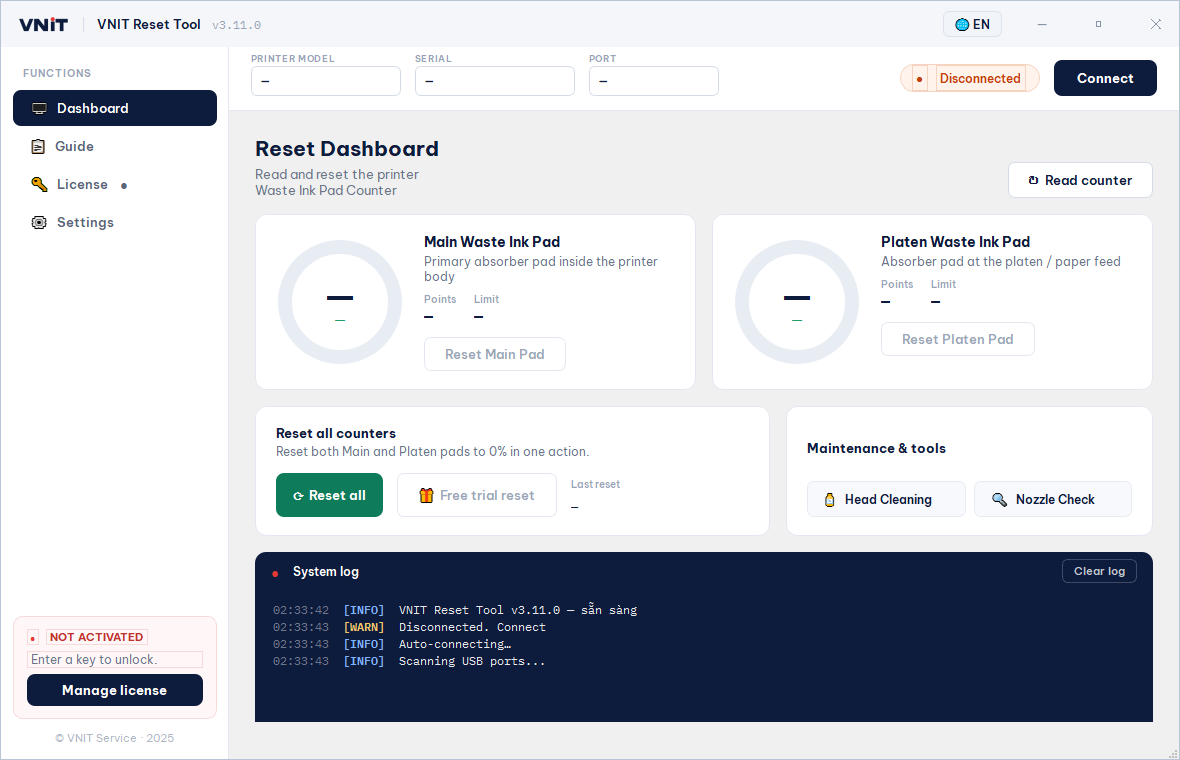
Windows shows a blue "Windows protected your PC" box? Click More info → Run anyway. Windows shows this for any application that has not bought a code-signing certificate; it is not a virus warning. If you want to be certain, check the published SHA-256 checksum.
Connect the printer and read the counter
Connect the printer, switch it on, wait until it stops moving, then open the app. Use a USB cable straight into the computer — it works on every supported printer, and most models can only be read and reset over USB. Wi-Fi works on just a few models (tested OK on the L805; the L5290 and ET-2800 do not work over Wi-Fi). If several Epson printers are connected, the app asks which one to work on.
On the Dashboard, click Read counter. There are two gauges:
- Main Waste Ink Pad — the main absorber inside the body
- Platen Waste Ink Pad — the absorber under the platen / paper path
Below 80% is normal. 80–99% means it is filling up, so get a pad ready. 100% means the printer has stopped printing and needs a reset. Some models that have not been calibrated show raw points instead of a percentage — they still reset normally.
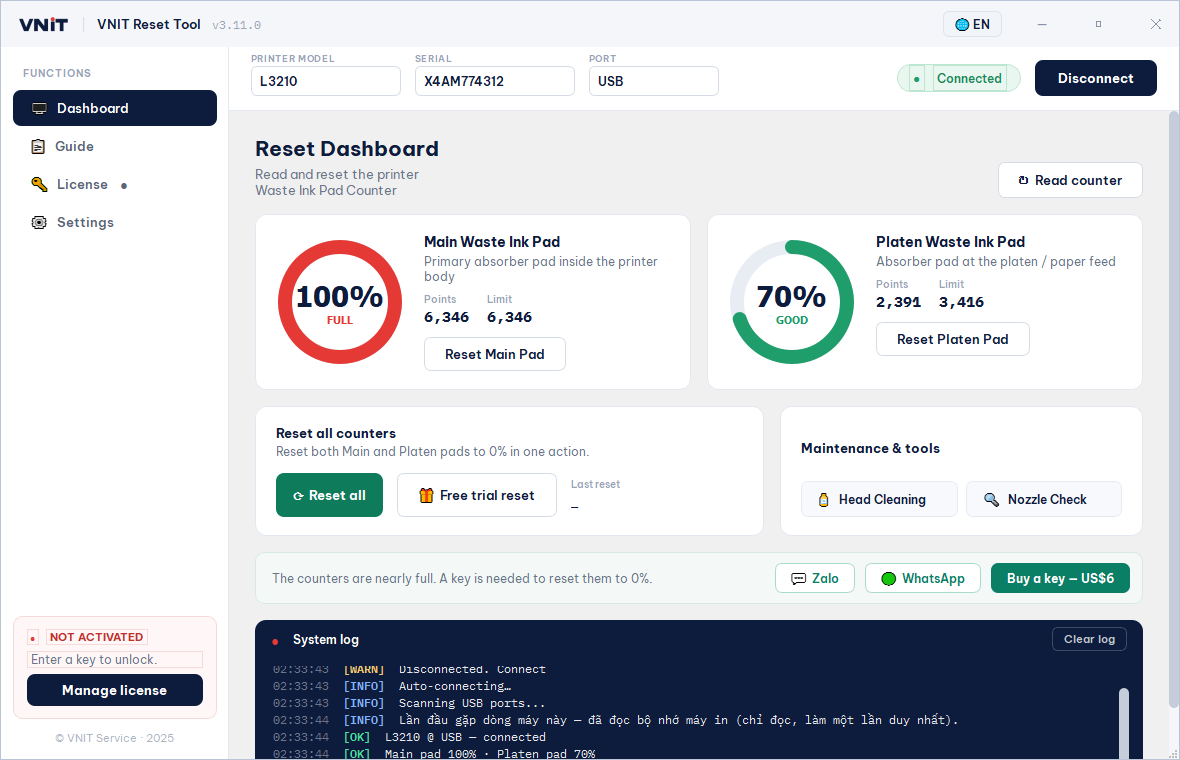
The Points and Limit figures under each gauge are the raw numbers the percentage comes from, which is handy when you want to check how close the printer really is to its limit rather than trusting a rounded percentage.
No key yet? Use the free trial once
The 🎁 Free trial button appears when no key has been entered. Click it and the counter drops to 85% — the printer stops showing the error and prints again immediately.
The point is to let you see with your own eyes that the software works on your exact printer before paying anything. Because it only goes to 85%, it will fill up again after a while; clearing it all the way to 0% needs a key.
- One trial per printer. It is counted on our server, not on your machine, so reinstalling the app does not hand you another one. A second printer gets its own trial.
- Your counter has to be at 90% or above. At 60–70% the 85% target is higher than where you already are, so nothing would change and you would have burned the trial for nothing. The app stops you rather than letting that happen.
- You need to be online for the trial.
- If the reset fails halfway, the trial is not used up.
Using a reset key
VNIT offers two kinds of key:
| Reset key | Technician key | |
|---|---|---|
| Best for | Home and office — occasional use | Repair shops working on many printers |
| Covers | One reset, one printer | Unlimited resets for a year |
| Locked to | Each single use | One computer |
| Needs internet | Yes | No |
Buying one: click Buy a reset key — card or PayPal, and the key is emailed to you automatically, usually within a minute. You do not need an account.
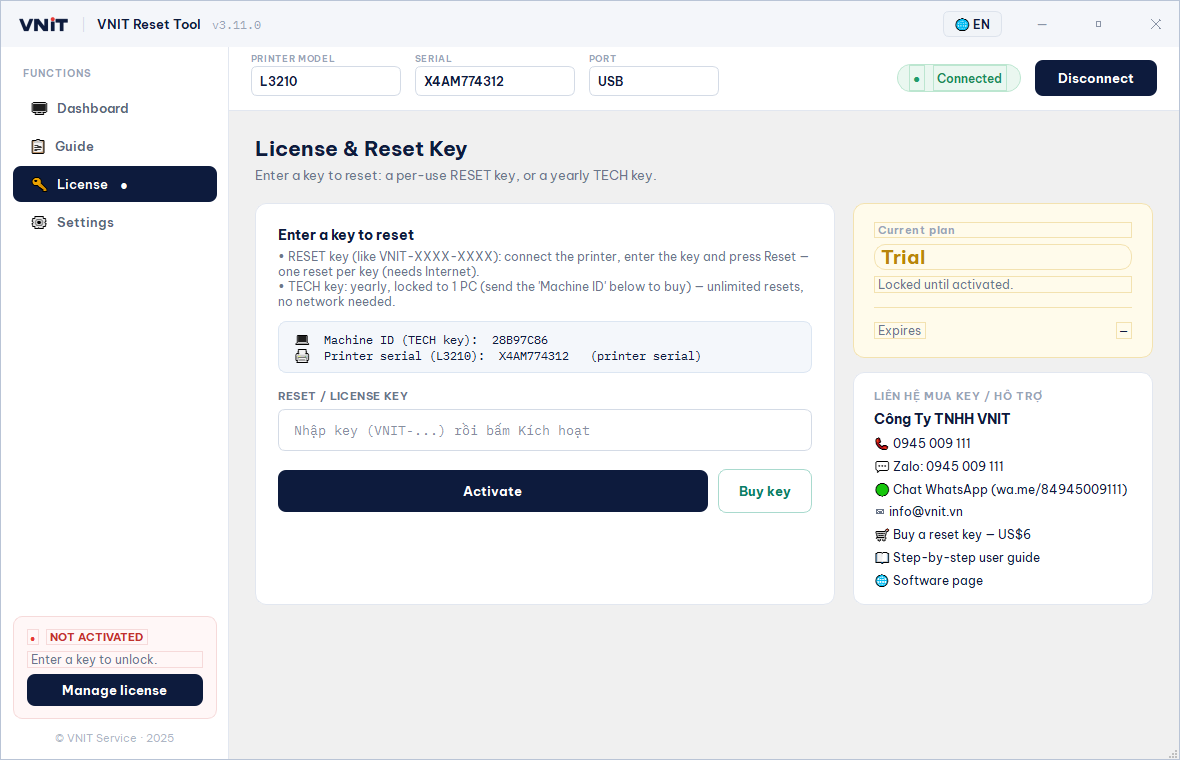
Using it: open the Licence screen, paste the code into the key field and click Activate. From version 3.11 the app then takes you straight back to the reset you were doing and reopens the confirmation box, so there is nothing to go looking for. Read the warning, click Confirm reset, and the counter goes to 0%. To clear just one counter, use Reset Main Pad or Reset Platen Pad instead.
If you clicked Reset before entering a key, the app opens the Licence screen for you — that is expected, and you will be returned to the reset once the key is accepted.
For a technician key, send VNIT the Machine ID shown on the Licence screen.
Switch the printer off and on — do not skip this
When the reset finishes the app walks you through two prompts: Step 1/2 — switch the printer off, then Step 2/2 — switch it back on. Use the printer's own power button.
The printer does not notice the new counter until it restarts. This is, by a wide margin, the most common reason someone concludes the software did nothing. It did; the printer simply has not looked yet.
Once it is back on, read the counter again to check: 0% if you used a key, 85% if you used the trial.
Troubleshooting
| What the app says | What to do |
|---|---|
| Communication error | Check the USB cable and power, switch the printer on and let it settle, unplug and replug the cable, then try again |
| The printer is held by the system | Open Settings → Printers & Scanners, select the Epson printer, click Pause, then try again |
| Model not in the database | That model is not supported yet — send VNIT the exact model name and we will add it |
| Written, but the read-back does not match | Do not switch the printer off — try the reset again |
| Nothing happens when you click | Read the System log panel at the bottom — the app writes the reason there |
| The app closes by itself | There is a loi.txt file next to VNIT_Reset.exe — send it to VNIT |
Printers with a maintenance box (L6550, L8050, L18050…) cannot be reset in software — the box or its chip has to be replaced. See chipped maintenance boxes.
VNIT Reset Tool runs on Windows 7–11 and macOS 11+ (Intel and Apple silicon), resets 1,115 Epson models in software and installs nothing. Downloading it and reading your printer's model, serial and counter is free, and so is the trial reset. Only the full reset to 0% costs anything: US$6 for one reset on one printer.
Card or PayPal, key emailed in about a minute, any time of day. Packs: 5 keys US$25 · 10 keys US$50.
VNIT has its own reset tool and zeroes the waste ink pad counter directly for most common Epson models — you do not need to buy a WIC key. Our technician connects via UltraViewer/TeamViewer, resets safely and advises you on the pad — From 150,000₫ in Vietnam, US$10 from abroad, with warranty. No need to carry the printer to a shop.